日本語

Doozo

No more
“Don’t swipe.”

Choose only what to show, and hand your iPhone over. However they swipe, they stay within the photos you chose.

Coming soonon the App Store

Free to use (iPhone, iOS 26 or later)

How it works

Choose, then hand it over.

No more worrying that they’ll swipe past what you meant to show.

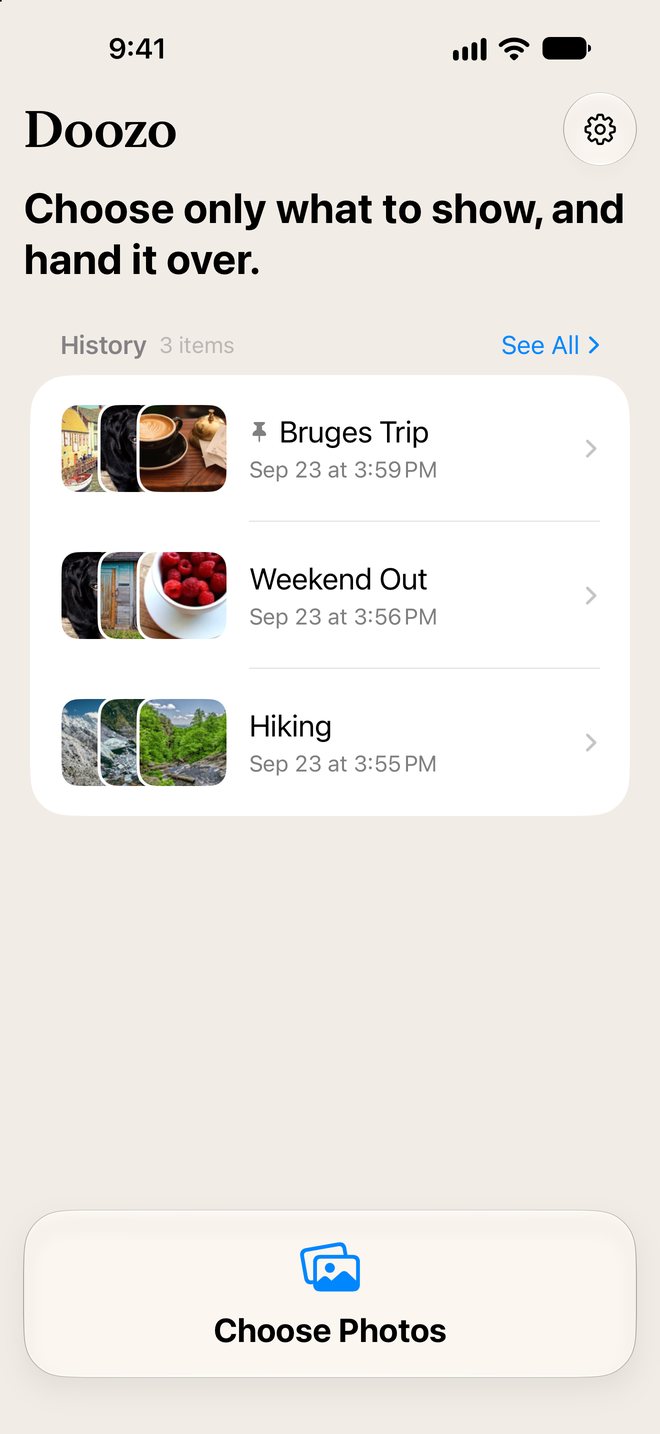
  1. The home screen with History and Choose Photos The home screen with History and Choose Photos
    1

    Choose photos

    Pick only what you want to show, in the photo picker you already know.

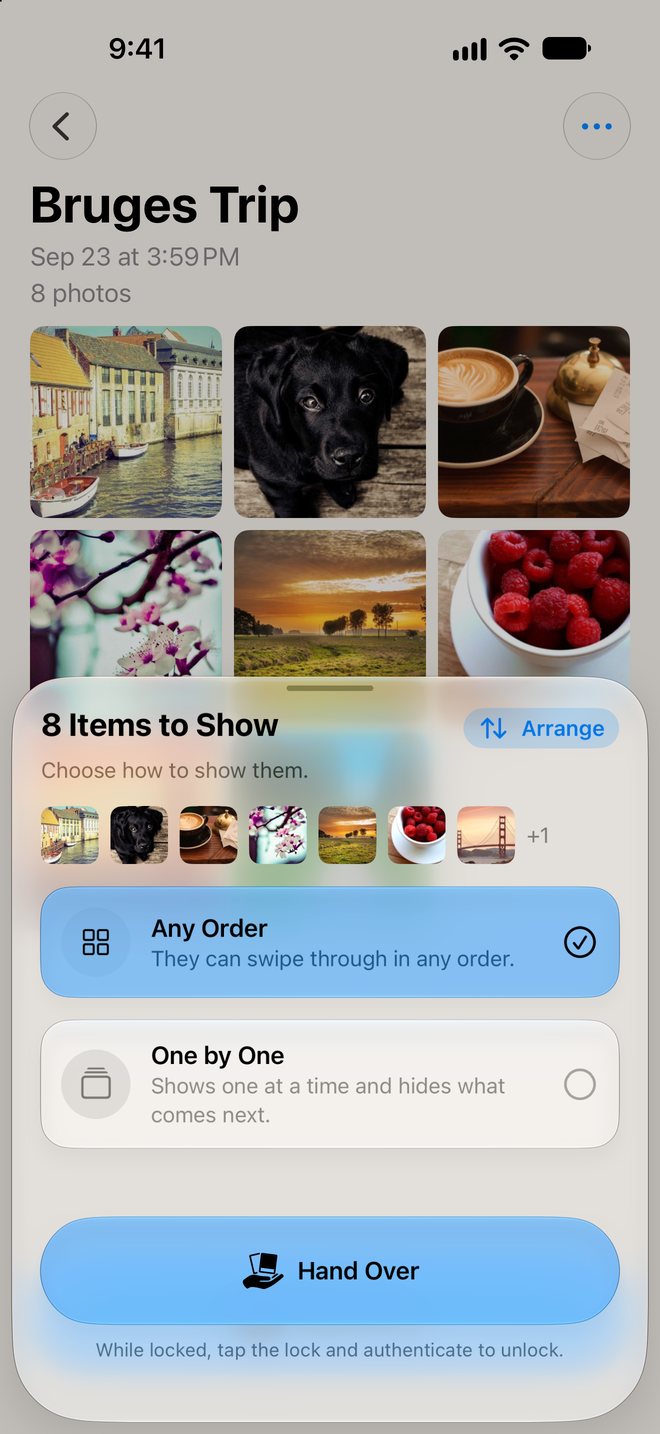
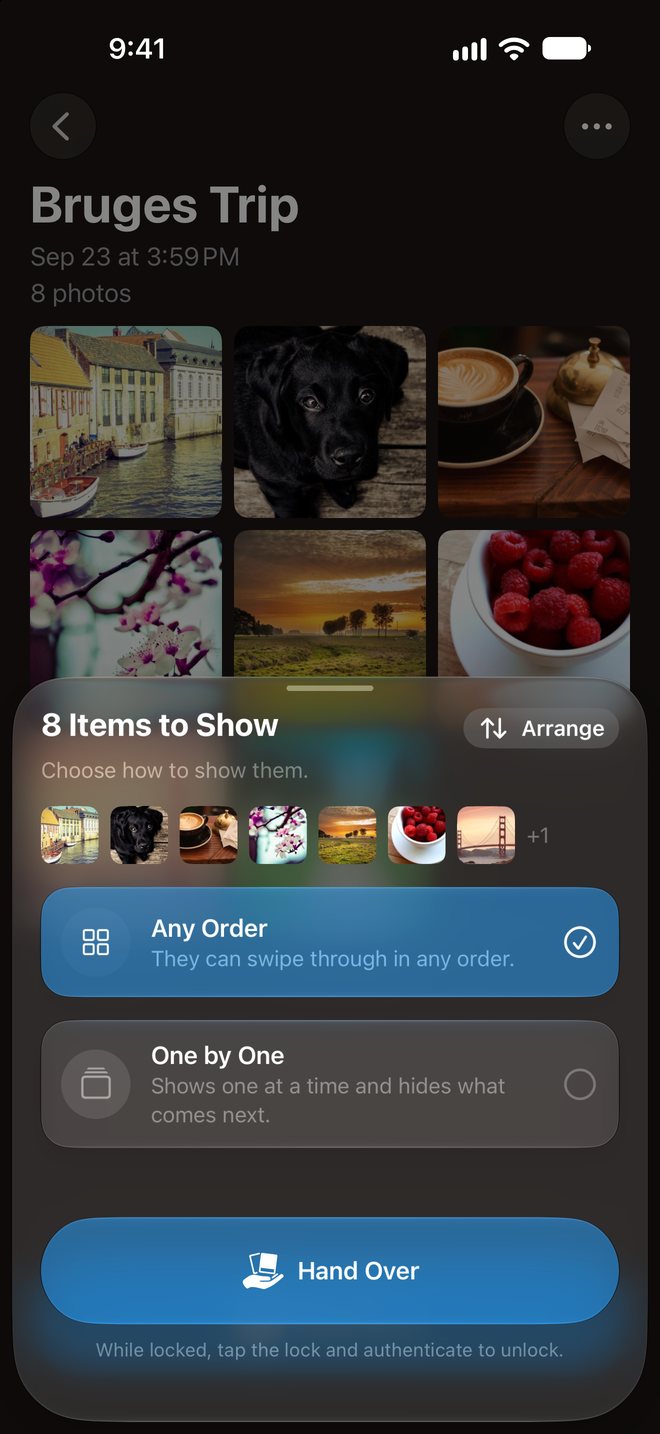
  2. The sheet before handing over, with the ways to show The sheet before handing over, with the ways to show
    2

    Choose how, tap Hand Over

    Let them swipe freely, or show one at a time. Arrange or remove photos here too.

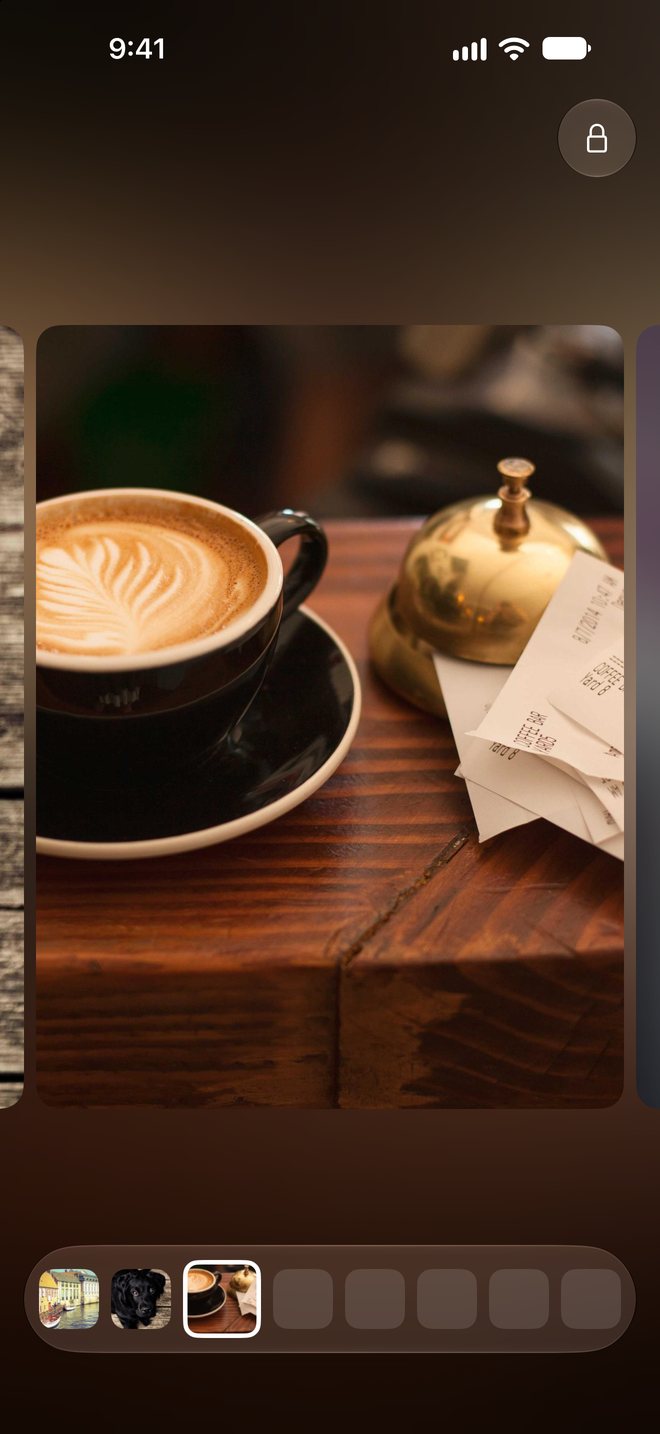
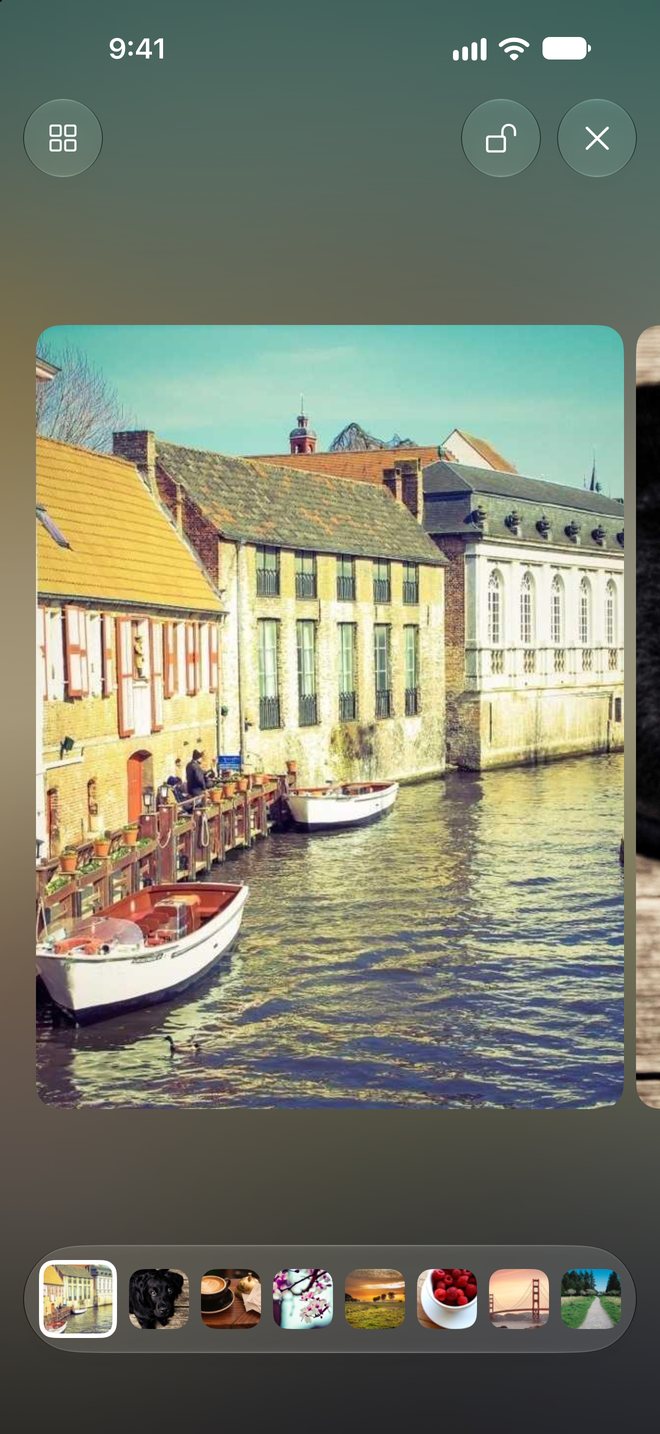
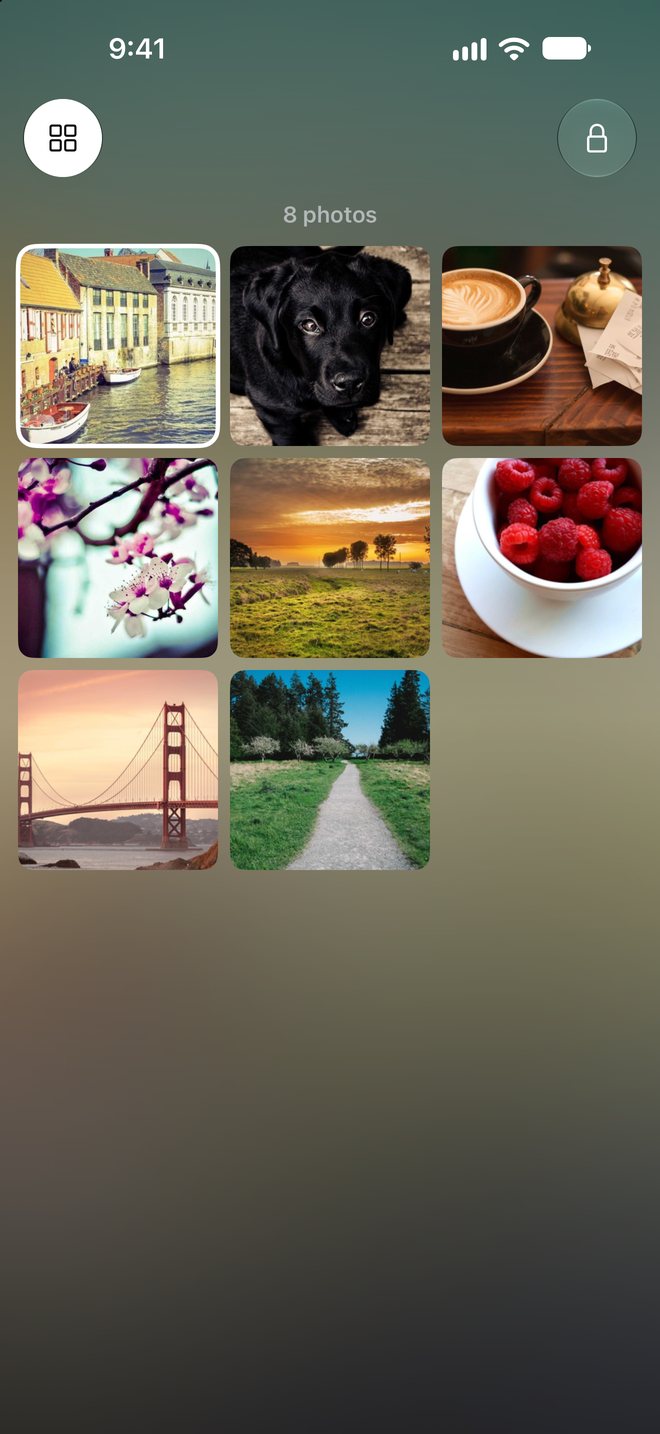
  3. The handoff screen showing only the chosen photos
    3

    Hand it over

    However they swipe, they move only among the photos you chose.

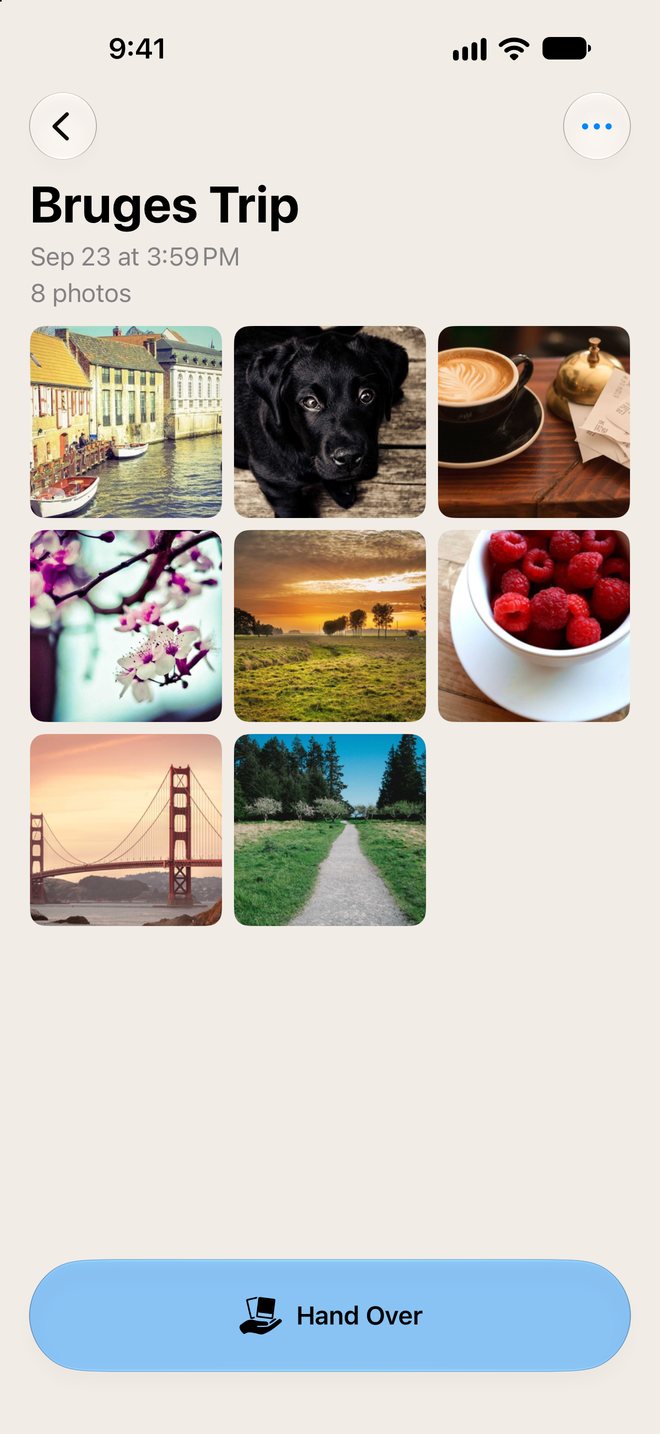
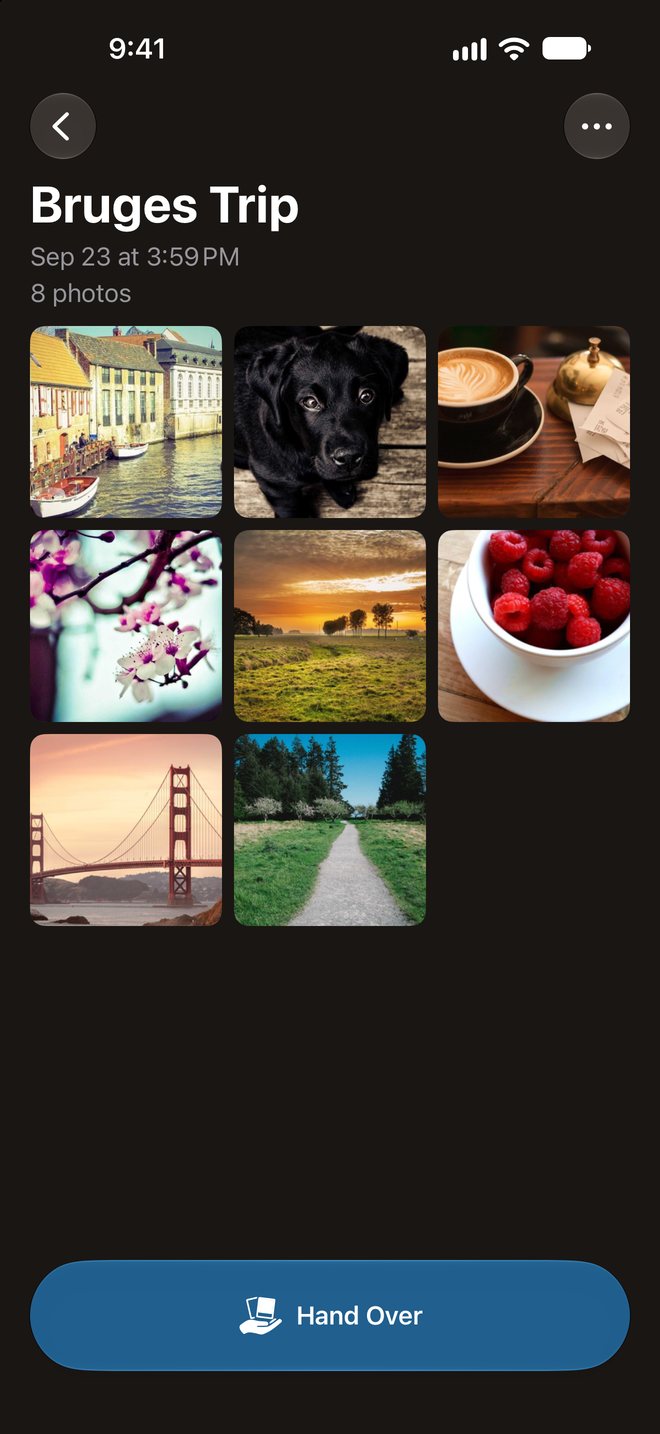
A grid of only the chosen photos
Only what you chose

They can’t go past your photos

Swiping, tapping the thumbnails, or opening the grid, they only ever see the photos you chose. Nothing next to them in your library, and no screenshot you just took, can turn up.

Zoom, videos, and Live Photos work as usual, and photos are shown at their original quality.
The locked handoff screen: the close button is gone and only the lock remains
Face ID lock

Only you can close itPLUS

Lock with Face ID before you hand it over. While locked, the close button disappears, and it can’t be closed until you tap the lock and authenticate.

Turn on Lock When Handing Over, and it locks every time you hand it over.

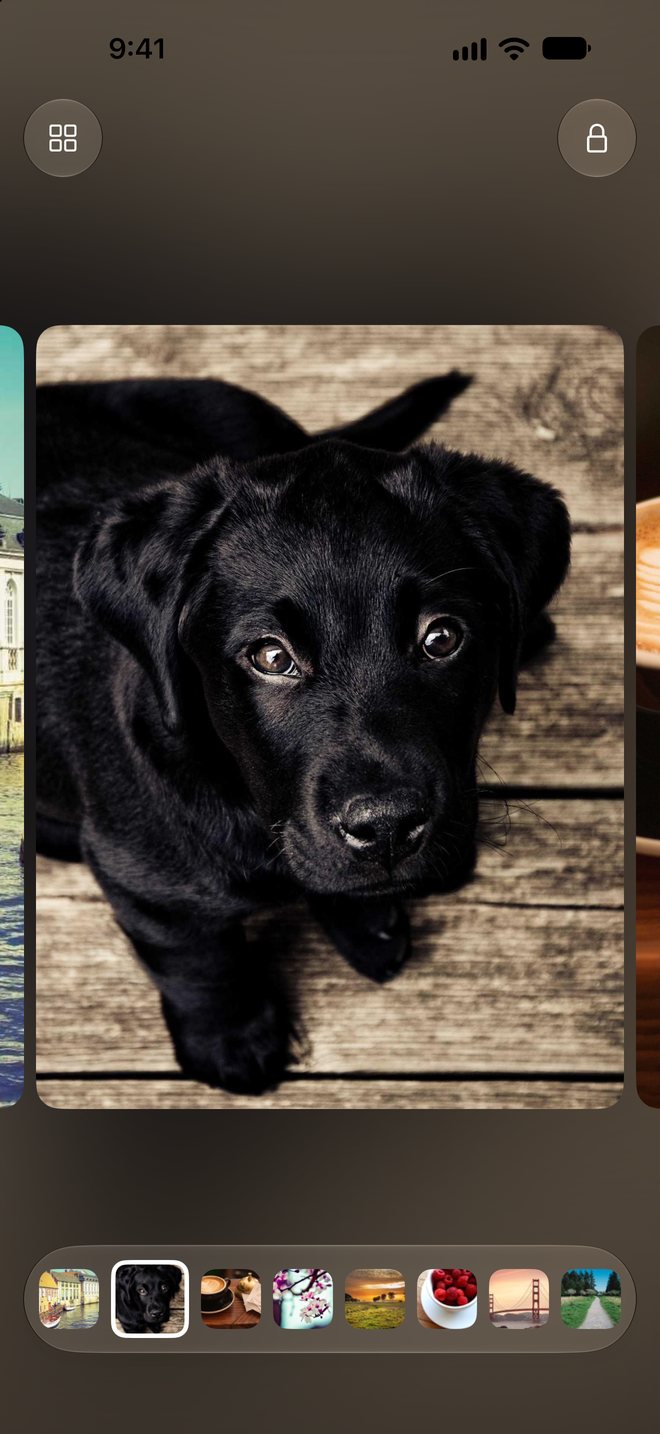
Showing one at a time, with the photos ahead hidden
One at a time

Show one at a timePLUS

Show photos in the order you tell the story, with what comes next kept hidden. Only the photos already shown line up below, so nobody can peek ahead.

A named history A named history
History

Show them again from HistoryPLUS

What you showed stays in History. Name it, pin it, or add photos, so “Can I see those trip photos again?” takes a single tap.

Your photos and history stay on your iPhone and are never sent to us.

And more

Even quicker to hand over.

From the Lock Screen

Add the Doozo control to your Lock Screen or Control Center and start choosing photos right away.

Share from PhotosPLUS

Send photos and videos you’ve selected in the Photos app to Doozo with the Share button, ready to hand over.

Videos, and no limitPLUS

Choose videos too, with no limit on how many photos you pick at once.

Privacy

Your photos never leave your iPhone.

An app for showing photos has to be careful with them above all.

No account

No email address, no sign-in. Install it and start using it.

Photos are never sent

The photos you choose and your history are stored only on your iPhone. We never receive your photos or which ones you chose.

No tracking

Doozo never asks to track you. Its ads are non-personalized, and paid plans don’t load ads at all.

Plans

Features and Plans

The basics are free.

FreeNo AdsPlus
Lock with Face ID
AdsYesNoNo
Photos at once510Unlimited
Videos
History
Names and pins
Show one at a time
Share from other apps

Plus is available monthly, yearly, or as a one-time purchase. The monthly plan starts with a 7-day free trial for new subscribers. Prices and terms follow the App Store.

What Doozo can’t prevent

Doozo keeps people from moving on to photos you didn’t choose within the app. It can’t stop notifications or going to the Home Screen or other apps. If that matters, use Guided Access on your iPhone too; the steps are in the app’s Settings under How to Use.

FAQ

Questions

No. Without full access, the photos you choose are copied into the app, so they may take a little longer to appear.

No. Deleting history leaves the photos in the Photos app as they are.

History is a Plus feature, so when Plus ends, all history is deleted, including named and pinned ones. Photos in the Photos app stay as they are. If a renewal fails because of a payment problem, Plus keeps working during the App Store grace period.

Use Restore Purchases in the app’s Settings to restore purchases made with the same Apple ID. To cancel, use the Settings app.

Doozo

Here you go.

Questions or feedback? We’d love to hear from you.

Coming soonon the App Store
Contact by Email